This is a deployment guide for distributed and remote teams — covering network configuration, device policy, E911 compliance, and admin setup for a cloud phone system that actually works when no one is in the same office. For a broader overview of what virtual phone systems are and how they compare to on-premise PBX, see Virtual Phone System: What It Is, How It Works & Top Picks.
A distributed team with a badly configured phone system is invisible to its customers. Calls ring the wrong person, or ring nobody. Transfers drop. Voicemails pile up in personal inboxes. Callers can't tell whether they've reached a professional business or someone's home phone. The people trying to fix it discover that the system was designed around a single office and nobody thought about what happens when the team is spread across three cities.
Setting up a phone system for a remote or hybrid team is not dramatically more complicated than setting one up for a single office. But it requires deliberate choices at each step — around technology, network configuration, device policy, security, and E911 registration — that you can skip in a co-located setting but cannot in a distributed one. This guide walks through each of those choices in the order you'll actually face them.
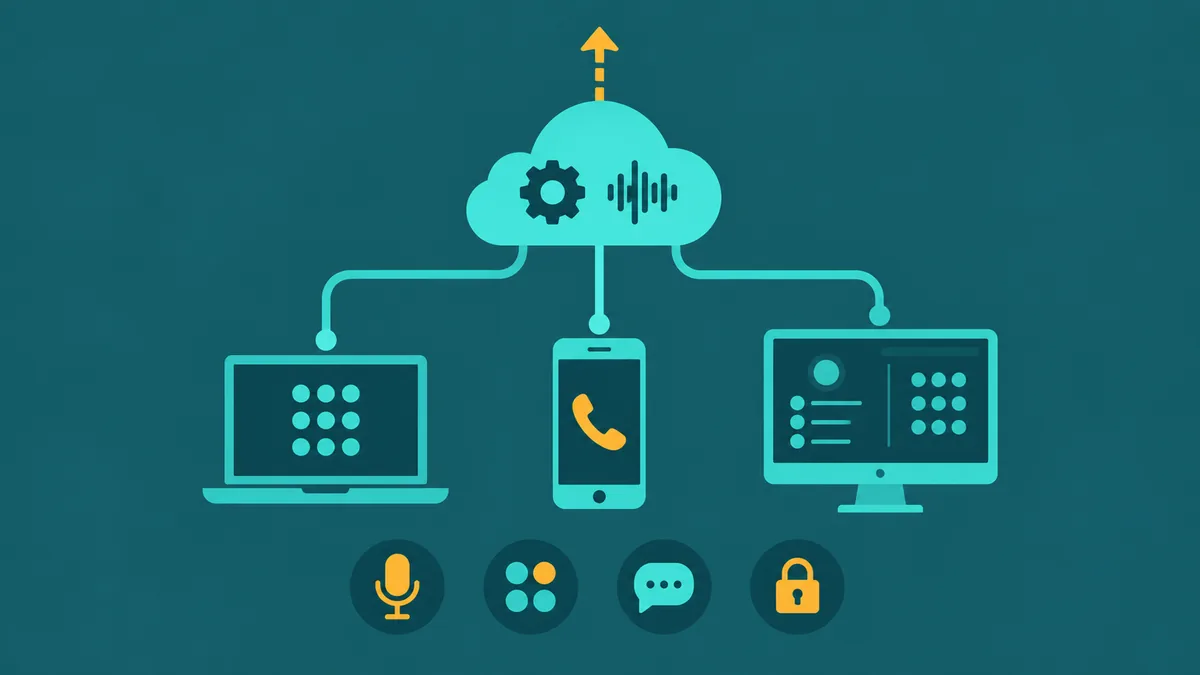
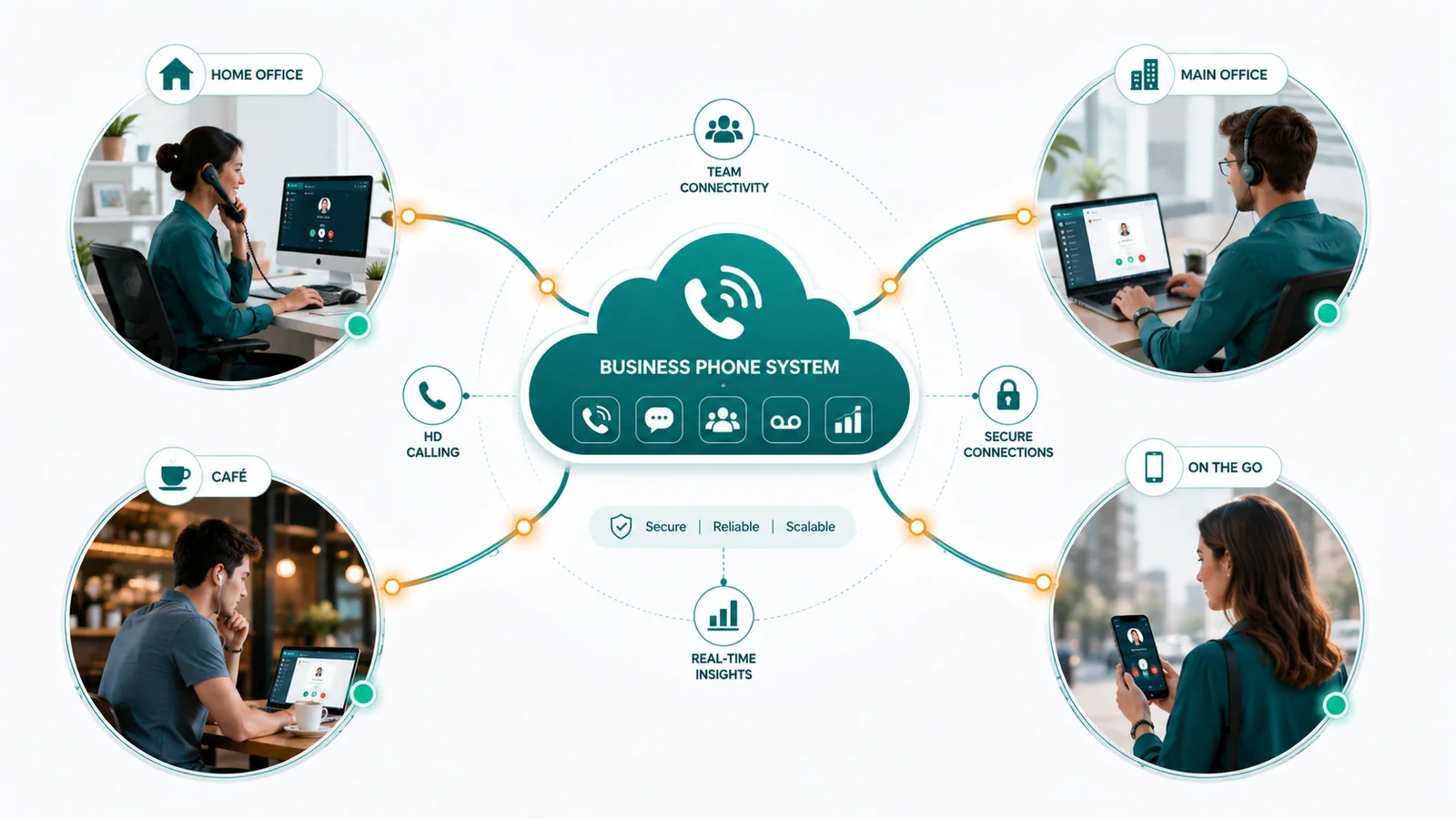
What is a remote business phone system? A remote business phone system is a cloud-hosted platform that lets employees make and receive business calls from any location — home offices, co-working spaces, client sites, or on the road — using softphone apps on laptops and mobile devices rather than physical desk phones tied to an office network. Calls route through the same business number regardless of where staff are physically located.
Why traditional office phone systems fail distributed teams
A conventional on-premise PBX was engineered for one building. All the phones plug into a physical box in the server room. Call routing decisions happen inside that box. When an employee works from home, they're effectively cut off from the system — they either use a personal number (which creates the appearance of a fragmented business) or forward calls in a chain that's one mis-step away from a dead end.
Even cloud phone systems can be set up in ways that replicate this problem. A system configured only with desk phone extensions, no mobile app policy, and routing rules that assume everyone is at a fixed workstation will behave like an on-premise system even though it runs in the cloud. The difference between a phone system that works for remote teams and one that doesn't is mostly configuration, not technology.
The specific failure modes that show up most often in distributed teams:
- Calls routed to a desk phone that nobody is sitting at, ringing into voicemail
- Employees using personal mobile numbers for work, mixing business and personal communications
- No way to transfer a call to a colleague because the system doesn't know where they are
- Voicemails accessible only by dialing in from a physical phone, so remote workers miss them
- E911 pointing to the office address for employees who haven't been there in months — a compliance issue covered in our guide on E911 for remote workers and dispatchable location
- Call recordings absent because the recording feature only activates on certain devices or networks
A properly deployed cloud phone system addresses all of these — but only if the deployment is done with distributed work explicitly in mind.
What remote phone setup actually requires
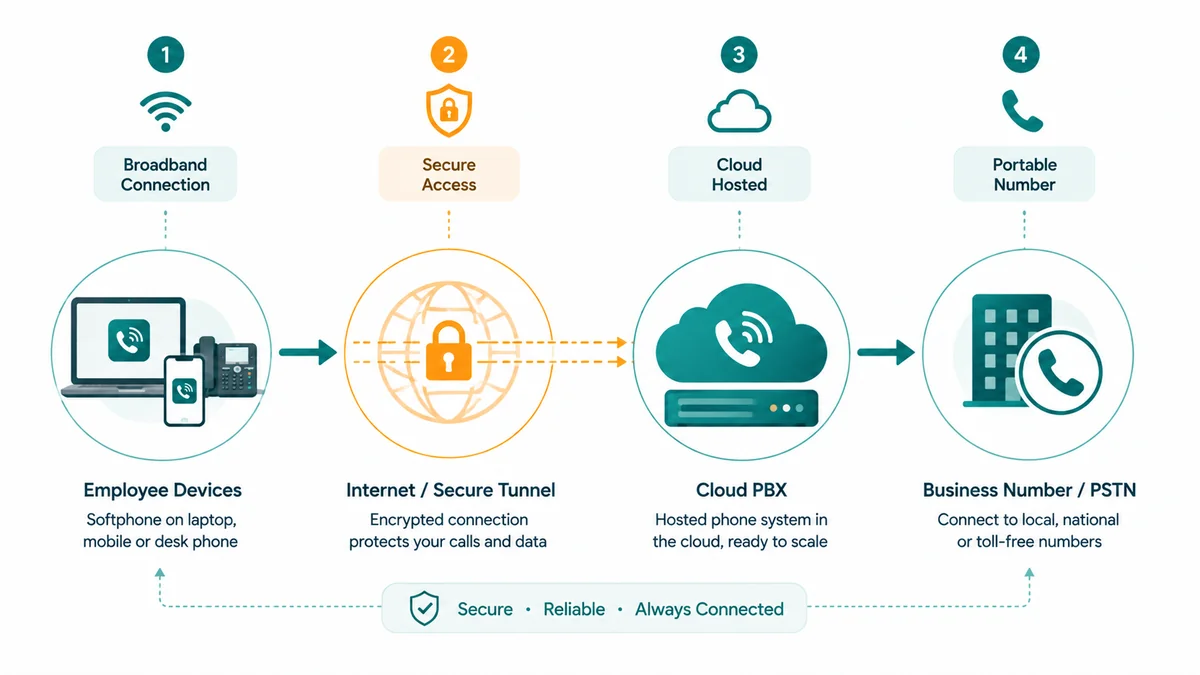
Before choosing a platform or comparing pricing, it helps to be clear about what you're actually deploying. A remote business phone system for a distributed team has four components that need to work together.
1. A cloud-hosted platform
The phone system itself needs to live in the provider's data centers, not your office. This means your call routing logic, IVR menus, voicemail, and user management are all accessible via a web admin portal from anywhere with an internet connection. You don't need a VPN to manage the system or add a user. Changes you make take effect immediately for all locations.
UCaaS platforms are the standard choice for distributed teams — they bundle voice, video, and messaging in one subscription and give each employee a consistent experience regardless of location. Hosted PBX platforms (voice-only, without the video and messaging stack) work equally well if your team handles video through a separate tool like Zoom or Teams.
2. Softphone apps on every device
Physical desk phones are optional for remote teams. Most distributed teams rely on softphone apps — software clients installed on laptops and smartphones — that connect to the cloud phone system over the internet. A remote employee downloads the app, signs in with their work credentials, and their business number rings on that device. They can call, transfer, hold, and record exactly as they would at a desk.
The mobile app is particularly important for remote workers who don't sit at a computer all day. A field technician, a real estate agent, or a delivery coordinator needs calls to ring on their phone — not on a laptop that might be sitting in a bag. Test the mobile app specifically during your evaluation period, not just the desktop client. Notification reliability on mobile varies significantly across providers.
3. Adequate internet at each location
Each remote worker's home internet connection becomes part of your phone infrastructure. The platform provider manages everything up to the point where the call enters your employee's network. Everything from that point inward — their router, their Wi-Fi, their ISP — is outside the vendor's control. Most residential broadband handles VoIP easily in terms of raw speed: each concurrent HD voice call needs about 80–100 Kbps of bidirectional bandwidth. The more common issues are latency, jitter, and packet loss.
A fast cable or fiber connection with high jitter produces choppy, robotic audio. Ideally, remote workers use wired ethernet connections for calls rather than Wi-Fi, particularly for HD audio. This is often impractical in home offices, but the recommendation is worth communicating: when call quality matters (client calls, sales calls, recorded calls), plug in the ethernet cable. For teams where uninterrupted voice connectivity is mission-critical, remote call center internet redundancy covers failover ISP configurations and backup connection strategies. For distributed teams who also rely on video meetings, the network conditions that affect voice are the same ones that affect video — accessing online meetings reliably covers bandwidth bottlenecks, firewall issues, and VPN routing that commonly affect remote workers.
4. Centralized administration with per-user controls
In a distributed team, the person responsible for the phone system — IT, operations, whoever owns it — won't be able to walk over to help an employee reconfigure their extension. The admin portal needs to let that person provision users, change call routing, reset voicemail PINs, and pull call logs without physical access to any device. The best platforms do this through a web-based admin console accessible from anywhere.
Per-user controls matter because employees in different roles have different needs. A customer service rep needs their calls to route to a queue during business hours. A sales account executive needs direct inbound on their own extension, with a specific voicemail greeting. A part-time contractor might need limited hours of availability. A well-structured cloud phone system lets you configure all of this per user without compromising the overall call flow.
Technology options: what you're actually choosing between
The category names in this market — VoIP, hosted PBX, UCaaS — get used loosely. Here's what actually distinguishes the options relevant to remote teams.
| Option | What it includes | Best for remote teams when | Typical price range |
|---|---|---|---|
| Hosted PBX (voice only) | Business phone lines, call routing, voicemail, recording, auto-attendant, mobile app | Team already uses Zoom/Meet for video; just needs business calling | $15–$30/user/month |
| UCaaS platform | Everything in hosted PBX plus video meetings, team messaging, file sharing | Team wants a single platform for all communications | $20–$45/user/month |
| Microsoft Teams Phone | Business calling layered onto Teams, requires Teams licensing | Team is already in Microsoft 365 and uses Teams daily | $8–$15/user/month (add-on to M365) |
| Zoom Phone | Business calling layered onto Zoom, integrates with Zoom meetings | Team already runs most meetings on Zoom | $10–$20/user/month |
For most SMBs and mid-market teams building a remote phone infrastructure from scratch, a hosted PBX or UCaaS platform is the right starting point. Microsoft Teams Phone and Zoom Phone make the most sense when your team already has deep adoption of those platforms and you want to extend calling into the same interface rather than introduce a separate tool. See the business phone system buyer's guide for a more detailed evaluation framework.
Implementation steps for a distributed team
These steps apply whether you're setting up a phone system from scratch or migrating an existing system to support remote workers. The order matters — each step builds on the one before.
Step 1: Map your call flows before touching any configuration
Before you log into an admin portal, draw out — on paper or in a document — how you want calls to behave. Who answers calls to the main business number during business hours? What happens after hours? Does the caller hear a menu? Are there different numbers for different departments? What happens if nobody answers — does the call go to a group voicemail or an individual one?
Remote teams often have more complex requirements here than single-office teams because there may be no physical reception desk, staff may span multiple time zones, and "office hours" may vary by employee. Mapping this before you configure anything reveals the gaps — the scenarios you haven't thought through — before they become support tickets from frustrated callers.
Common call flow decisions for remote teams:
- Which ring group covers the main business number, and which employees are in it?
- What's the timeout before a call goes to voicemail if nobody answers the ring group?
- Is there an after-hours message, and when does it activate relative to each time zone represented on the team?
- Do any employees need a direct inward dialing (DID) number, or does everything go through the main number?
- How are transfers handled — warm transfer (announce to the recipient before connecting) or cold transfer (transfer directly)?
Step 2: Choose a platform and provision accounts
Once your call flow requirements are documented, select the platform that fits them. Create the account and provision users before doing any routing configuration — some platforms let you configure routing around placeholder users, others require active accounts first.
For each user, set up:
- Login credentials (use SSO if your organization uses Google Workspace or Microsoft 365 — fewer passwords for remote workers to manage)
- Extension number (even if nobody dials extensions externally, they're useful for internal transfers)
- Voicemail with a recorded greeting — don't leave the default
- Voicemail-to-email delivery so messages arrive in the employee's inbox without requiring them to dial in
- Device policy: which devices can register to this user's extension (all devices, or only company-managed ones)
Step 3: Configure routing, ring groups, and your auto-attendant
With accounts provisioned, build the call routing your flow map defined. The key elements for remote teams:
Ring groups (also called hunt groups) let multiple employees share a number. When a call comes in, it rings all of them simultaneously or in a defined sequence. For a distributed team, ring groups are essential — they ensure callers reach someone even when individual team members are unavailable or in different time zones. See the call routing guide for a breakdown of ring-all, round-robin, and sequential routing strategies.
Auto-attendant greets inbound callers with a menu and routes them to the right destination without a human receptionist. For fully remote teams, an auto-attendant is often the only consistent first point of contact a caller has. Keep the menu short — two or three options maximum — and use clear, direct language. Test the audio by calling the number yourself before going live.
Time-based routing changes call behavior based on the time of day or day of week. For teams spanning multiple time zones, decide whose time zone governs business hours — typically the time zone where most customers are located, not where employees happen to be. After-hours routing should send callers to a voicemail that sets accurate expectations about when they'll hear back.
For teams handling significant inbound call volume, call queue management adds the ability to hold callers in a queue with estimated wait times rather than sending them to voicemail after a short ring. This is more relevant for customer-facing teams than for internal-only phone use.
Step 4: Deploy softphone apps across the team
Send each employee instructions for downloading and configuring the softphone app on their laptop and mobile phone. Most platforms offer single-click provisioning via email — the employee clicks a link, logs in, and the app configures itself. Manual SIP credential setup is rarely necessary with modern UCaaS platforms.
Include in the onboarding instructions:
- How to set availability status (available, do not disturb, away) so the system knows when to route calls to them
- How to transfer calls to a colleague
- How to check voicemail from within the app (not by dialing in)
- How to enable and disable call recording for their sessions, if per-user control is allowed
- What to do if call quality is poor (check wired connection, close bandwidth-heavy applications)
A 30-minute team walkthrough at launch prevents most of the first-week support requests. Employees who never use the softphone are typically employees who weren't shown what it can do.
Step 5: Port existing numbers (if applicable)
If your team has existing business numbers they want to keep, initiate porting early. Number porting transfers a number from your current carrier to the new platform. The process requires a Letter of Authorization (LOA) signed by the account holder, plus account verification with your current carrier. Standard numbers take 7–14 business days after the current carrier accepts the request. Toll-free numbers can take up to four weeks.
Start porting three to four weeks before your planned go-live. Keep the old service active until porting is confirmed complete. Canceling early makes the number unportable.
Step 6: Validate before going live
Before routing real customer calls through the new system, run a structured validation:
- Call the main business number from an external phone and test every menu path
- Verify that after-hours routing activates at the correct time in the correct time zone
- Test call transfers between employees — both warm and cold
- Confirm voicemail-to-email delivery is working for each user
- Check that call recording activates where it should, and doesn't where it shouldn't
- Test the mobile app from outside your office network (from a cellular connection) to confirm it works without a VPN
- Verify E911 registration for each employee's physical location (more on this below)
EaseDial Business Phone
One platform for your whole distributed team — apps, routing, recording, and E911 managed from one admin console.
Security considerations for remote workers
A remote workforce changes the security perimeter for your phone system. In a single office, calls travel between controlled endpoints on a network your IT team manages. In a distributed team, calls originate from home networks, coffee shop Wi-Fi, and personal devices — environments outside your direct control. These are the security requirements that matter most in that context.
Encryption in transit
Any cloud phone platform you use for a distributed team should encrypt calls in transit using SRTP (Secure Real-time Transport Protocol) for audio and TLS (Transport Layer Security) for signaling. SRTP prevents call audio from being intercepted in transit — relevant when calls pass through untrusted networks like home broadband or public Wi-Fi. TLS protects the signaling data that controls call setup and teardown.
Most enterprise-grade cloud phone platforms enable SRTP and TLS by default. Verify this in the platform's security documentation before deploying. Some lower-cost providers or legacy configurations may default to unencrypted RTP, which is unsuitable for business use.
Device and endpoint management
Decide which devices are permitted to register to your company's phone extensions. Allowing any personal device — unmanaged, without a PIN, potentially with apps that could capture audio — is a security and compliance exposure for businesses handling sensitive conversations. Options range from:
- Open policy: Any device can register with valid credentials. Simplest to deploy, lowest security control.
- MDM enrollment required: Devices must be enrolled in mobile device management (MDM) before the softphone app can be installed. MDM lets IT enforce screen locks, remote wipe, and app controls.
- Approved devices only: Only company-issued laptops and phones can register. Strongest control, higher hardware cost.
For most SMBs, requiring MDM enrollment before softphone installation is a practical middle ground. It doesn't require buying hardware for everyone, but it gives IT the ability to revoke access and wipe the work app if a device is lost or an employee leaves. The BYOD business phone security guide is the full reference on securing employee-owned devices in a business phone environment.
Authentication and access controls
Enable multi-factor authentication (MFA) on the phone system admin portal. A compromised admin account in a cloud phone system gives an attacker the ability to redirect calls, access recordings, listen to voicemails, and potentially expose call metadata. MFA is the single most effective control against credential-based account takeover.
For user accounts, enforce strong passwords and tie login to your organization's SSO provider if available. When an employee leaves, deactivating their identity provider account should immediately revoke access to the phone system — no separate deprovisioning step required.
Role-based access matters too. Not every employee needs admin-level access to the phone platform. Separate user-level access (can answer calls, check voicemail, set availability) from admin-level access (can change routing, add users, access all recordings). Smaller organizations often give everyone admin access out of convenience — this is a risk worth avoiding.
Call recording compliance
If your business records calls, remote workers need to understand the same consent obligations that apply in an office setting — but the practical enforcement is harder. An office-based recording system plays a disclosure to all callers automatically. A softphone app that allows on-demand recording puts the decision in the employee's hands.
For businesses in regulated industries, or those operating in all-party consent states (California, Florida, Illinois, Pennsylvania, and Washington, among others), configure automatic recording disclosure at the system level rather than relying on employees to do it manually. Set the platform to play a recorded disclosure at call start before connecting to an agent when recording is enabled.
The UCaaS security and compliance guide covers call recording law, HIPAA requirements for voice, and data residency considerations in more depth.
E911 registration for every location
This is the remote phone requirement that most businesses handle incorrectly or skip entirely. A traditional office phone system knows its address because it's physically installed at that address. A cloud phone extension has no automatic knowledge of where the user is located.
If a remote employee calls 911 from a VoIP extension without a registered address, emergency services may receive an incorrect location — the registered office address, or no address at all. In a genuine emergency, this can delay response significantly.
The solution is to register each remote employee's home office address (or their primary work location) for E911 in the phone system admin portal. Most platforms support this at the user level — each user can have a physical address associated with their extension. Employees who move regularly or travel frequently need a process for updating their registered address.
Additionally, configure a softphone notification that reminds employees to update their location when they sign in from a new network or address. Some platforms support nomadic E911 — automatic location detection based on IP address or Wi-Fi network — but this is less reliable than explicit address registration and should not be the only safeguard.
Common problems and solutions
These are the issues that distributed teams encounter most often after launching a remote phone system, along with the specific fixes for each.
Problem: Poor call quality on home internet connections
Symptoms: Choppy or robotic audio, one-way audio, calls dropping mid-conversation.
Diagnosis: Run a VoIP quality test from the affected employee's location. Check latency (should be under 150ms one-way), jitter (under 30ms), and packet loss (under 1%). If metrics pass but quality is still poor, check whether the employee is on Wi-Fi — particularly 2.4GHz Wi-Fi in a dense residential area.
Fix: Move to a wired ethernet connection for calls. If Wi-Fi is unavoidable, use a 5GHz connection and position the router closer to the workspace. If the ISP connection itself has high jitter or packet loss, the employee may need a different internet provider or a 5G mobile hotspot as a backup for calls.
Problem: Missed calls on mobile because notifications don't arrive reliably
Symptoms: Employee reports they never hear the phone ring but sees missed call notifications afterward.
Diagnosis: Check the platform's push notification configuration for iOS and Android. Some platforms use VoIP push notifications (which wake the app when a call arrives) rather than standard push notifications. iOS in particular has specific requirements for VoIP push that not all platforms implement correctly.
Fix: Verify the softphone app has notification permissions in the device settings. Check whether battery optimization on Android is killing the app in the background. Contact the provider's support if the issue persists — some providers have known notification reliability issues on specific device/OS combinations, and a platform update or configuration change may be required.
Problem: Employees using personal numbers instead of the business system
Symptoms: Customers complain they have trouble reaching the business; employees report the app is inconvenient; call logs show low usage.
Fix: Address the root cause, not just the policy. If the app is being avoided, there's usually a reason — poor call quality, cumbersome login, notification issues, or lack of training. Fix the friction first. Then establish a clear expectation: all customer-facing calls go through the business system. Managers can reinforce this by pulling call logs from the admin portal and discussing coverage during team check-ins.
Problem: Calls routing to voicemail even when employees are available
Symptoms: Callers say they always reach voicemail; employees say they're available and never heard the phone ring.
Diagnosis: Check the ring timeout setting on the user's extension and the ring group. A 10-second ring timeout before forwarding to voicemail is too short if the softphone app takes a few seconds to wake up. Also check whether the employee's status is correctly set to "Available" in the app — some platforms route based on presence status, and a status of "Away" or "Do Not Disturb" bypasses ringing entirely.
Fix: Extend the ring timeout to 20–30 seconds. Train employees to set their availability status correctly in the app when they start and end their workday. If presence status is the issue, configure ring groups to ring the extension regardless of presence status, or set the group to ring the mobile number as a parallel destination.
Problem: Transferred calls dropping
Symptoms: When an employee transfers a call to a colleague, the call disconnects.
Diagnosis: Dropped transfers often trace to a SIP re-INVITE handling issue between the platform and the employee's network configuration, or to a firewall blocking the re-negotiated media stream after transfer.
Fix: If the employee is on a home network with a consumer-grade router, check whether the router's SIP ALG (Application Layer Gateway) is enabled. SIP ALG — despite its name — often breaks SIP transfers by modifying SIP headers in ways that confuse the platform. Disabling SIP ALG is a common fix. Contact the platform provider's support if disabling SIP ALG doesn't resolve the issue.
Remote phone system checklist
Use this before declaring the system live for your distributed team.
| Area | What to verify | Done? |
|---|---|---|
| Routing | Main number rings the correct ring group; after-hours routing activates at the right time; overflow voicemail is configured | |
| Softphone apps | All employees have the app installed on laptop and mobile; notifications tested; all users can make and receive calls | |
| Voicemail | Each user has a recorded greeting; voicemail-to-email delivery is working; team voicemail box is configured if applicable | |
| Call recording | Recording is enabled where required; disclosure announcement is playing; recordings are accessible to the right admin accounts | |
| E911 | Each employee's home office or primary work location is registered; employees know how to update their address | |
| Security | MFA enabled on admin accounts; SRTP/TLS confirmed in platform settings; device policy documented and communicated | |
| Training | Team walkthrough completed; transfer, voicemail, and status procedures documented in an accessible reference | |
| Number porting | Porting confirmed complete before old service canceled; test call placed to ported number to verify delivery | |
| Internet quality | VoIP readiness test run at each remote worker's primary location; QoS configured on routers where possible |